- Always close to you - more than 18,500 Packstations and Poststations
- Send and receive flexibly, regardless of opening hours1
- Shipping possible without printing the shipping label and without registration
How do you want to use your Packstation
)
)
)
)
)
)
Do you already have a DHL customer account
To receive parcels at Packstations, you need to register once free of charge.


Frequently asked questions
What shipments can I send via a Packstation?
Parcels shipped via a Packstation must be franked prior to shipment and have a minimum size of 15 x 11 x 1 cm and a maximum size of 75 x 60 x 40 cm. To this end, you may use a DHL Paketmarke stamp, a DHL Päckchenmarke stamp or a returns sticker provided by the sender. You can purchase shipping stamps/labels via DHL Online Frankierung, using the Post & DHL app, or at a Deutsche Post shop.
For shipping stamps/labels purchased online with a QR code or returns with a QR code, you can print the label directly at the Packstation. Stick the label to the shipment and then place the shipment in a free compartment.
At Packstations without printers (exception: app-controlled Packstations), scan the QR code of your mobile Paketmarke stamp and place the shipment in the compartment without a shipping label. At app-controlled Packstations, use the app to enter the PAK-ID or RET-ID. The delivery agent will print the label for you when he/she removes the parcel.
Please note that a Packstation can only be used for sending shipments transported by DHL Paket.
You cannot send the following shipments from a Packstation:
- Books and merchandise
- Large letters or maxi letters
- Express shipments, and
- Shipments using the transport insurance service.
Is this answer helpful?
Thank you for your feedback.
Where do I collect my shipment with the Packstation notification card?
If the delivery driver did not find you at home, they may place your shipment in a Packstation and leave a notification card for you. You can use this card to pick up your shipment at the Packstation.
You will find the address of the Packstation holding your shipment on the notification card. You can locate the Packstation using our location finder.
To pick up your shipment at a Packstation, proceed as follows:
- Packstation with a screen: Touch the screen, select “Pick up”, and scan the barcode on your notification card. Then enter your first and last name and sign on the screen with your finger.
The compartment containing your shipment will open; you can remove your parcel and close the compartment again. - App‑controlled Packstation: Open the Post & DHL App on your smartphone and tap "Pick up" in the "Packstation" section. Your smartphone will then connect to the app‑controlled Packstation via Bluetooth. You may need to grant the app permission to access your location and use Bluetooth (note: you do not need to open your smartphone's Bluetooth settings to establish this connection).
Once the connection to the Packstation has been established, scan the barcode on your notification card using the Post & DHL App, or enter the notification code from your digital notification manually.
The compartment with your shipment will open; you can remove your parcel and close the compartment again.
You do not need a customer account to pick up notified shipments at a Packstation.
Is this answer helpful?
Thank you for your feedback.
How do I receive a new pick-up code?
- Download the DHL parcel app to your smartphone
- Log in with your customer data (e-mail or post number and password)
- Activate the "Receive" area. The pick-up code will be prospectiverly be displayed in this section.
- Activate the push messages under > More > Messages
From now on, you will always receive a message as soon as a shipment is in the Packstation and you can easily and securely pick it up using your customer card and pickup code.
Is this answer helpful?
Thank you for your feedback.
What is the postnumber and what do I need it for?
The post number is your personal DHL customer number, which is assigned to you after registering for a DHL customer account. The post number is generated automatically and is directly linked to your customer account, i.e. the number is not transferable. After registering, you can view the post number in your customer account.
You need the post number to receive parcels at a Packstation or a postal outlet. So if you order a parcel to a Packstation or postal outlet, you need to enter your post number in the additional address field of the delivery address when you place your order.
In addition, your post number facilitates the assignment of all other shipments to your customer account, regardless of whether your shipments are sent to a postal outlet or your home address. This way, you will receive a parcel notification and the shipment will automatically appear in your shipment overview and the Post & DHL App.
Is this answer helpful?
Thank you for your feedback.
What kind of shipments can I receive at a Packstation?
You can receive the following types of shipments at a Packstation:
- DHL Päckchen and Paket
- Merchandise shipments (Warensendungen), Warenpost, and large or maxi letters without additional services (postage via Internetmarke or Digitalmarke)
- Express shipments without cash on delivery (Nachnahme)
- Registered mail (Einschreiben and Einwurfeinschreiben) except: registered mail with return receipt (Einschreiben mit Rückschein)
- Shipments from abroad, except: international cash-on-delivery shipments, shipments requiring self‑clearance, and shipments containing goods from non‑EU countries
The following shipments are fundamentally excluded from being delivered to a Packstation:
- Shipments exceeding maximum size limits
- Bulky goods (Sperrgut)
- Letter mail (postage with German or foreign stamps with/without matrix code, or Mobile Briefmarke #Porto)
- Shipments requiring additional payment or cash on delivery
- Shipments for which customs fees apply
- Self‑clearance shipments
- Shipments requiring age verification
- Shipments with transport insurance of EUR 2,500 or EUR 25,000
Please note that delivery to a Packstation is only possible when the shipment is transported by Deutsche Post and DHL. All types of cash‑on‑delivery shipments are excluded from Packstation delivery.
Is this answer helpful?
Thank you for your feedback.
How do shipments to Packstation need to be addressed?
When ordering parcels, always indicate your personal post number and the number of the desired Packstation in addition to your name. Moreover, enter the zip code and the location of the respective Packstation:
| Example | Instructions |
|---|---|
| Max Mustermann | -> Your name |
| 7654321 | -> Your post number from your customer account |
| Packstation 123 | -> Packstation with number |
| 12345 Musterdorf | -> Zip code and location of the Packstation |
Many online retailers provide designated input fields for the post number and Packstation number for deliveries to a Packstation. If this is not the case, simply enter your address as a separate delivery address.
You are not restricted to a specific Packstation, meaning you can freely choose any Packstation for each parcel.
Important: If the full name and the post number do not doubtlessly belong to the same customer account, the delivery person unfortunately cannot place the shipment in the Packstation. This means that delivery to family members using a common post number is not possible.
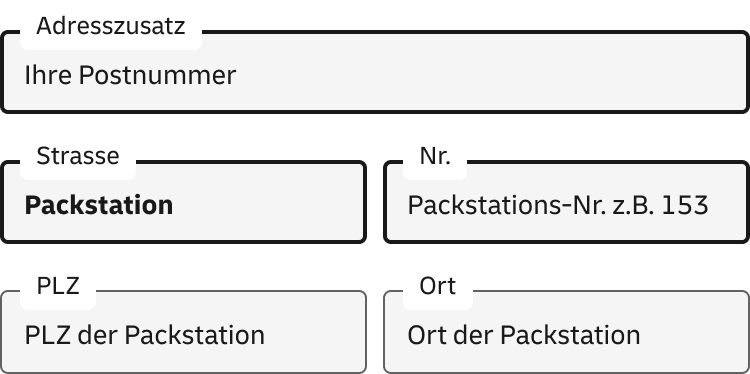
To receive your shipment at a Packstation, simply enter it as the delivery address in three easy steps.
- After your first and last name, enter your personal customer number (also called Postnummer) in the 'Address addition' field. You can find it on your DHL customer card or in the Post & DHL app. If the 'Address addition' field is not available, you can simply add your Postnummer after your last name, separated by a space.
- In the street field, write 'Packstation', and in the house number field, enter the three‑digit number of the Packstation you want to use.
- Now just enter the postal code and city of the desired Packstation. Done.
You can find all Packstations with their locations and address details in the Postfinder.
Is this answer helpful?
Thank you for your feedback.
Do you have any questions about receiving shipments with DHL? Help and contact
)
)
)
)
)
)
Download the Post & DHL app for free
(only available in German)


Download the Post & DHL app for free
(only available in German)


The contract partner for DHL receipt options for non-commercial customers is DHL Paket GmbH.
* Opening times may vary at certain locations