Login nicht sichtbar?

Mit der folgenden Schaltfläche können Sie die Login-Anmeldemaske anzeigen und die sichere Anmeldung abschließen.

Your session is about to expire

To protect your personal data, the current content is being hidden because you have been inactive for a while. Please click "Next" to return to it.

Your session is about to expire.

To protect your personal data, the current content is being hidden because you have been inactive for a while. After 15 minutes of inactivity, you will be automatically logged out. Please click "Next" to return to it.

You have been automatically logged out.

To protect your personal data, you will be automatically logged out after 15 minutes of inactivity. Please log in again if you wish to return to your DHL customer account.

You have been automatically logged out.

To protect your personal data, you will be automatically logged out after 15 minutes of inactivity. Please log in again if you wish to return to your DHL customer account.

Your session is about to expire

To protect your personal data, the current content is being hidden because you have been inactive for a while. Please click "Next" to return to it.

Shipping with the Packstation

Frequently Asked Questions about Shipping with the Packstation

For the dispatch through a Packstation the shipments must be franked in advance and have a minimum size of 15 x 11 x 1 cm or a maximum size of 75 x 60 x 40 cm, respectively. For this purpose, you can use a DHL Paketmarke, a DHL Päckchenmarke or a return label from the sender. You can buy shipping labels at DHL Online Franking, in the DHL parcel app or in the Deutsche Post store. 

For shipping labels purchased online with a QR code or returns with a QR code, you can print the parcel label directly at the Packstation. Stick the label onto the shipment and then insert the shipment into a free compartment.

At Packstations without a printer (except App-controlled Packstations), scan the QR code and insert the parcel without the shipping label. The deliverer will print the label for you when picking up the parcel.

Please note that only shipments which are transported with DHL parcel can be sent via Packstation.

You cannot send the following shipments from a Packstation:

  • Shipments of books or goods
  • Large or maxi letters
  • Express shipments, and
  • Shipments with the service transport insurance
Is this answer helpful?

Thank you for your feedback.

Everyone can send parcels and packages at a Packstation. A registration is not necessary. You can set up mail-order returns or use shipping labels that you have purchased from DHL online franking.

  1. Select "Send" on the screen.
  2. Place the barcode of the shipping label in front of the reader on the Packstation.
  3. Select a suitable compartment size.
  4. Insert your shipment and close the compartment.
  5. Confirm on the screen that the shipment has been put into the compartment.
  6. If you want, you can have a receipt of deposit sent to you by e-mail.

Note: Deposit receipts are only available for parcels. DHL Päckchen are shipments with no documented shipment history. Päckchen do not have a shipment number and therefore cannot be accounted for in shipment tracking.

Is this answer helpful?

Thank you for your feedback.

For DHL parcel you can get a receipt for the deposit at the Packstation.

You can request the posting receipt for your shipment via the Packstation screen after you have placed the shipment in an empty compartment. To do this, enter your e-mail address manually in the field provided and confirm your entry. The posting receipt will then be sent to you by e-mail. Your data will not be stored and will only be used for the transmission of the posting receipt.

Tip: As a registered DHL customer, you only need to enter your postnumber and you will automatically receive a receipt to your e-mail address. At the same time, you can participate in our bonus program with a DHL customer account and collect valuable bonus points when sending parcels with the Packstation.

Please note: Deposit receipts are not available for DHL Päckchen. These are shipments whose shipment history is not documented. Päckchen do not have a shipment number and therefore cannot be tracked in the shipment tracking system.

Is this answer helpful?

Thank you for your feedback.

When ordering parcels, always indicate your personal post number and the number of the desired Packstation in addition to your name. Moreover, enter the zip code and the location of the respective Packstation:

ExampleInstructions
Max Mustermann-> Your name
7654321-> Your post number from your customer account
Packstation 123-> Packstation with number
12345 Musterdorf-> Zip code and location of the Packstation

Many online retailers provide designated input fields for the post number and Packstation number for deliveries to a Packstation. If this is not the case, simply enter your address as a separate delivery address.

You are not restricted to a specific Packstation, meaning you can freely choose any Packstation for each parcel.

Important: If the full name and the post number do not doubtlessly belong to the same customer account, the delivery person unfortunately cannot place the shipment in the Packstation. This means that delivery to family members using a common post number is not possible.

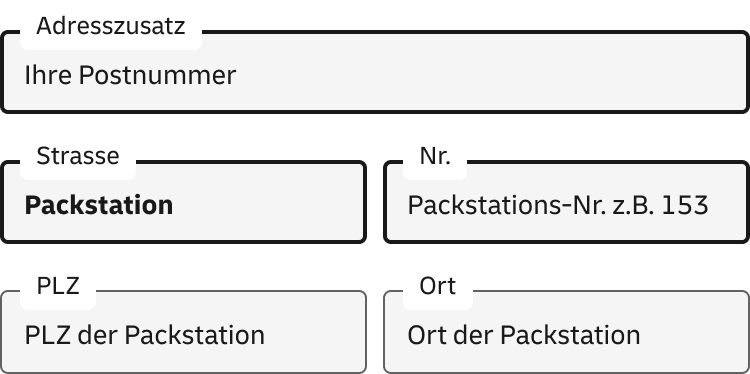
The illustration shows address input fields. The following paragraph explains the correct address entry in detail.

To receive your shipment at a Packstation, simply enter it as the delivery address in three easy steps.

  1. After your first and last name, enter your personal customer number (also called Postnummer) in the 'Address addition' field. You can find it on your DHL customer card or in the Post & DHL app. If the 'Address addition' field is not available, you can simply add your Postnummer after your last name, separated by a space.
  2. In the street field, write 'Packstation', and in the house number field, enter the three‑digit number of the Packstation you want to use.
  3. Now just enter the postal code and city of the desired Packstation. Done.
     

You can find all Packstations with their locations and address details in the Postfinder.

Is this answer helpful?

Thank you for your feedback.

Shipments with a minimum size of 15 × 11 × 1 cm (S compartment) and a maximum size of 75 × 60 × 40 cm (XL compartment) are suitable for the Packstation. Please note, however, that not every Packstation has an XL compartment.

If your shipment exceeds the permitted dimensions, your parcel may be redirected to a postal outlet.

The maximum permitted weight for posting and collecting shipments at the Packstation is 31.5 kg.

Is this answer helpful?

Thank you for your feedback.

Yes, you can also send a shipment at a Packstation using a QR code.

If the Packstation has a printer, you can print the shipping label directly there, attach it to the shipment, and place the parcel in an empty compartment.

At Packstations without a printer (except app-operated Packstations), scan the QR code of your Mobile Parcel Stamp and insert the shipment without a shipping label. At app-operated Packstations, enter the PAK-ID or RET-ID via the app. When the courier collects the parcel, they will print the label for you.*

Note: Always remember to enclose a note with the shipment information (including recipient and sender) inside your parcel. If the label on the outside becomes illegible or comes off, this ensures the shipment can still be processed correctly.

* Due to required customs documents, parcel stamps for destinations outside the EU can currently only be printed at post offices, Poststations, and Packstations with a printer.

Is this answer helpful?

Thank you for your feedback.

To print a shipping label at the Packstation, you need a Mobile Return or Mobile Parcel Label with a QR code. You can purchase the shipping labels in DHL Online Franking, in the DHL parcel app or in the Deutsche Post store. After purchasing the Mobile Parcel Stamp, the QR code is provided to you in the order confirmation or in the Post & DHL App. You will receive the QR code for a Mobile Return from your retailer.

To print the shipping label, select the 'Send' option on the Packstation display and hold your QR code on your smartphone or tablet in front of the scanner. If the Packstation has a printer, the shipping label will be printed directly for you, and you can then attach it to the shipment.

At Packstations without a printer (such as app‑operated Packstations), you insert the parcel without a shipping label. When the courier collects your parcel, they will print the label for you.*
 

*Due to the required customs documents, Mobile Parcel Stamps for destinations outside the EU currently cannot be printed at Packstations without a printer. They can only be printed at Packstations with a printer, at Poststations, and in post offices.

Is this answer helpful?

Thank you for your feedback.