Instructions for Creating an Online Damage Report via the Post & DHL Business Customer Portal

Overview of this User Guide

  1. Open the Post & DHL Business Customer Portal: 
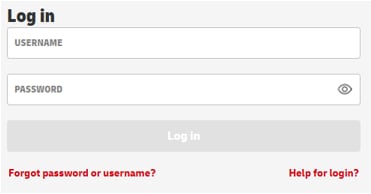
  1. If you need assistance logging in, please use the "Need help logging in?" button or contact DHL Technical Support (Monday to Friday, 08:00 AM - 06:00 PM; German: +49 228 76 36 76 79 / English: +49 228 76 36 76 59)
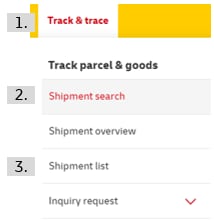
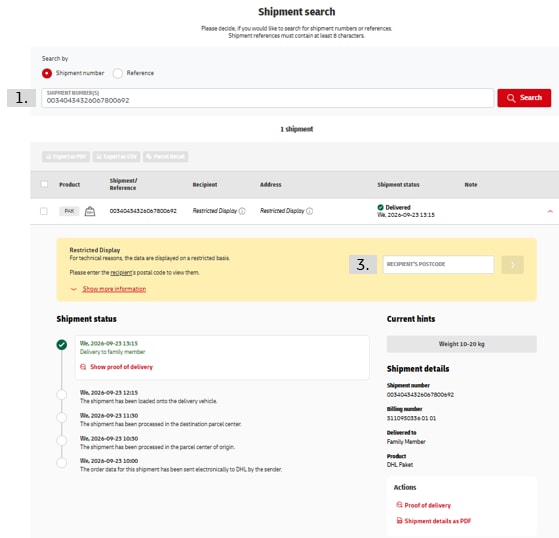
  1. Select the "Track" menu item.
  2. Click "Shipment Search" under the "Track Parcels & Goods" category to search using a shipment number or reference.
  3. Alternatively, click "Shipment List" under the "Track Parcels & Goods" category to view all shipments associated with your user account.

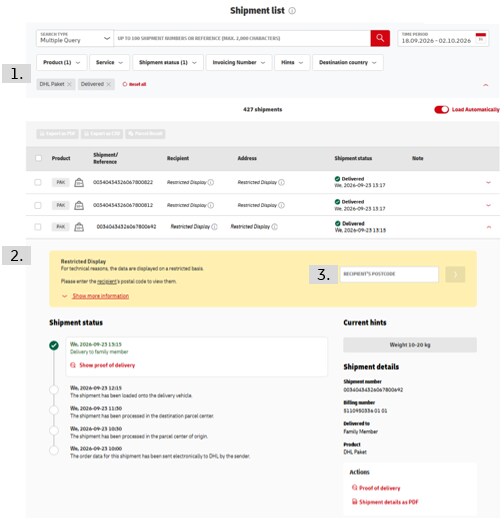
  1. Search for the shipment using the shipment number, reference, or available filters.
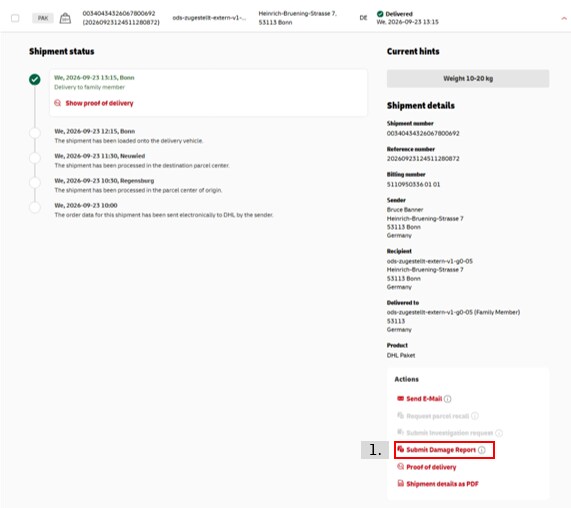
  2. Open the shipment details by clicking on the shipment.
  3. [For shipments with restricted information access] Answer the postal code verification question to view all shipment details and available actions.

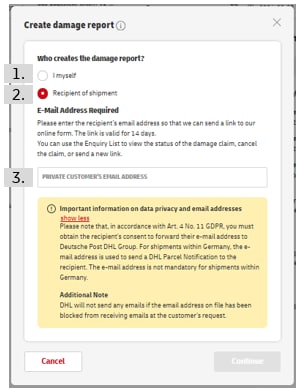
  1. Select "Create Damage Report" from the actions menu.

Online damage Reports can only be submitted for:

  • Delivered shipments

  • Domestic shipments

  • Shipments for which no damage Report has previously been submitted

  • Shipments that do not have restricted information access

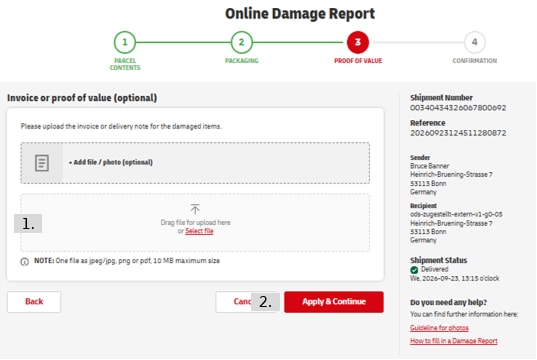
  1. [Optional] Upload a PDF or photo of the invoice or delivery note.
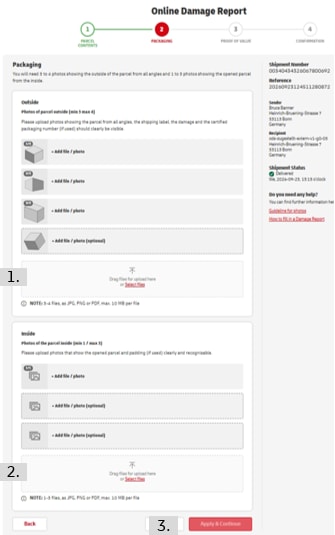
  2. Check the box "Yes, the packaging is DHL-certified" if the DHL certification logo is visible on the packaging.
Logo DHL zertifizierte Verpackung
  1. Upload at least three and no more than four photos of the exterior packaging.
  2. Upload at least one and no more than three photos of the interior packaging.
  3. Click "Apply and Continue".

Please note the following requirements: 

INFORMATION GUIDE for Online Damage Reports (Recipients)

  • A successful upload is indicated by a green check mark.
  • Uploaded files can be deleted using the red trash bin icon.
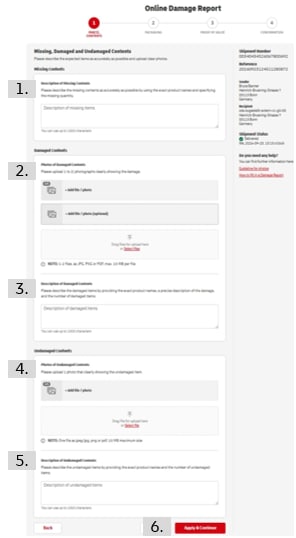
  1. Provide a meaningful description of the damage, including:
    • Exact product names
    • Detailed description of the damage
    • Quantity information
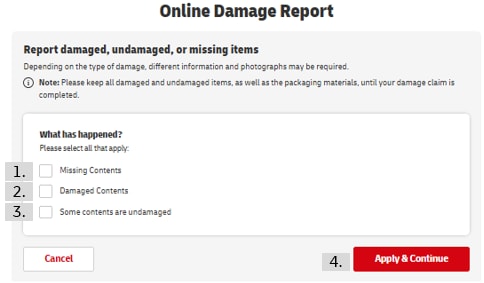
  2. Upload at least one and no more than two photos of the damaged goods
  3. Indicate whether the shipment also contains undamaged items
  4. [Optional] If undamaged items are included in the package:
    • Upload one photo of the undamaged items
  5. Click "Apply and Continue"

Please note the following requirements: 

INFORMATION GUIDE for Online Damage Reports (Recipients)

  • A successful upload is indicated by a green check mark.
  • Uploaded files can be deleted using the red trash bin icon.

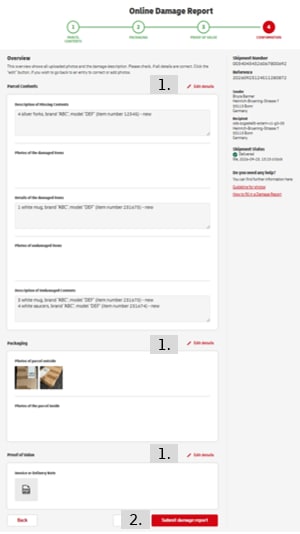
  1. [Optional] If you need to correct any information, click "Edit Entry"
  2. Click "Submit Damage Report"

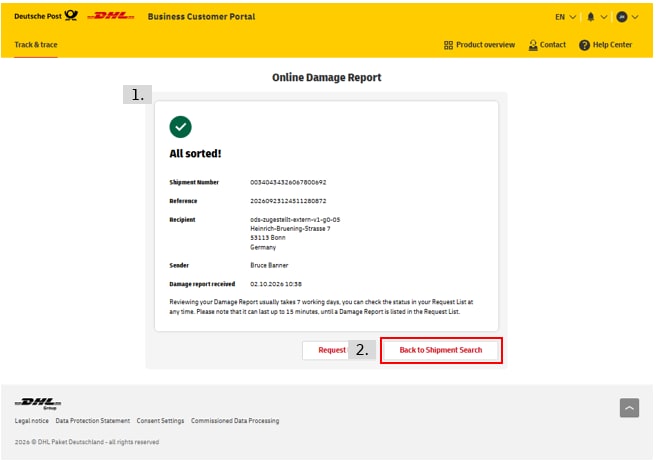
  1. After submitting the damage Report, you will receive a confirmation
  2. [Optional] Click "Go to Case List" to view the current status of your damage Report

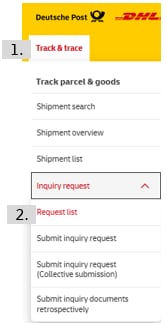
  1. Select the "Track" menu item.
  2. Click "Investigation" under the "Track Parcels & Goods" category and select "Case List".
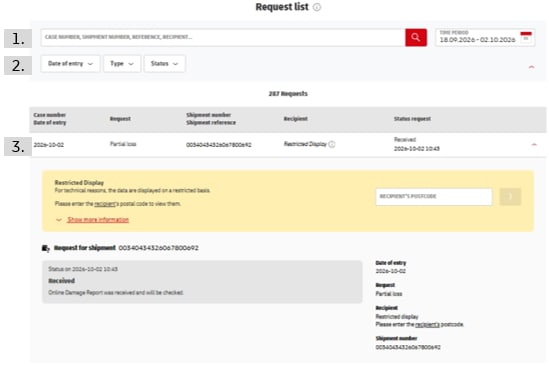
  1. [Optional] Search for your shipment using the search field
  2. [Optional] Search for your shipment using the available filters
  3. Open the case details by clicking on the entry to view the current status

Statuses for Online Damage Reports

StatusMeaning
Damage Report recordedThe damage Report has been registered in the system
Damage Report under completeness reviewThe provided information is being checked to determine whether it is sufficient for assessment
Information incomplete (reason provided in the note)The information provided is insufficient for assessment. Please resubmit the damage Report with improved information
In progressThe damage Report is currently being assessed
Documents requiredAdditional documentation is required for further processing (e.g., invoice, bank account details)
Closed with payment / without paymentThe damage Report has been processed with or without compensation, depending on the liability decision
To top# DAM Assets App